 Egress
Your Egress fleet on your iPhone
Check your fleet away from the desk
Egress runs GitHub Actions jobs in throwaway virtual machines on PCs and Macs you own. Pair your iPhone with your monitor Mac to check workers, jobs and five worker settings.
Needs the notarised Egress app on an Apple silicon Mac (macOS 14+).
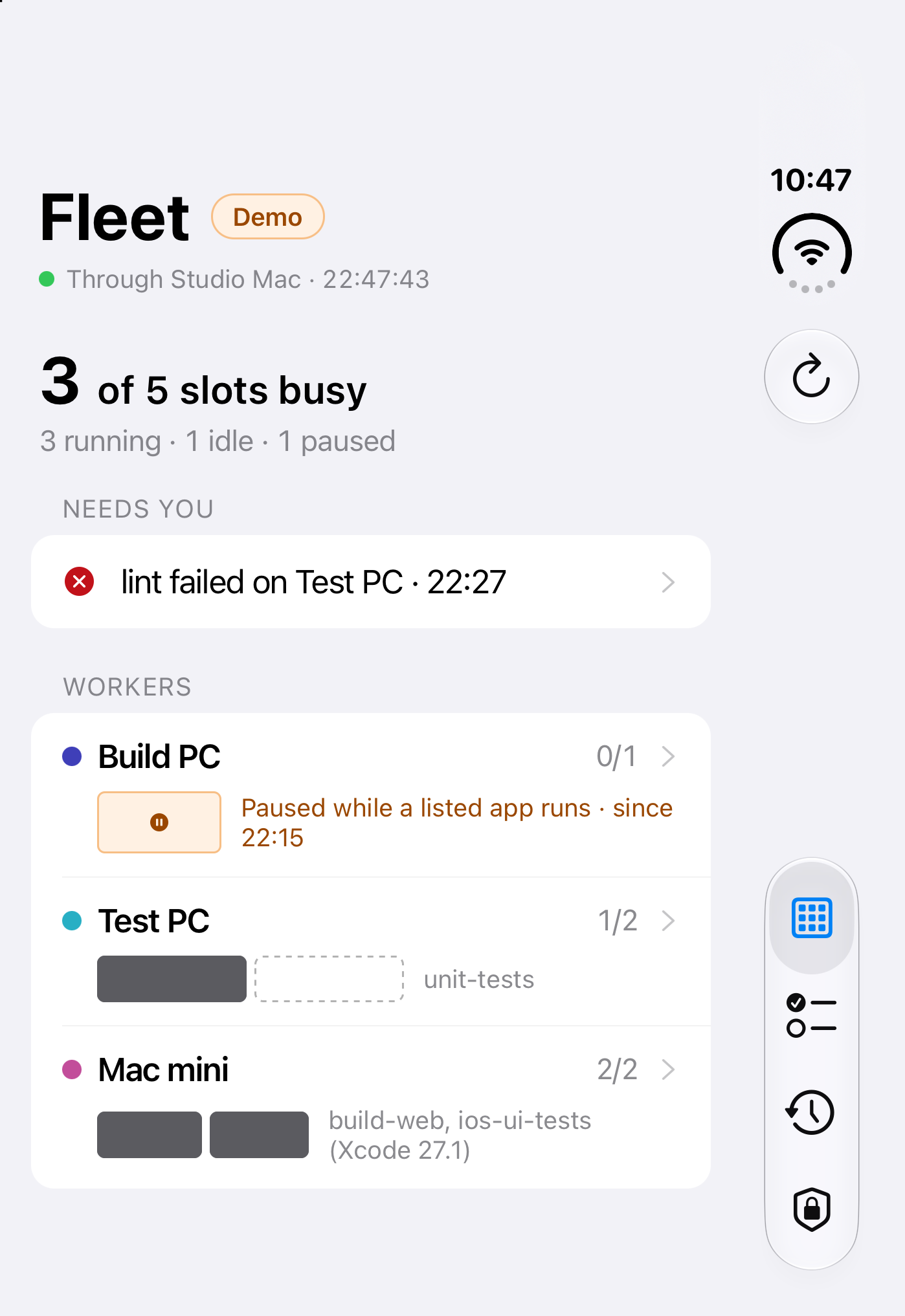
Every worker and job your Mac watches
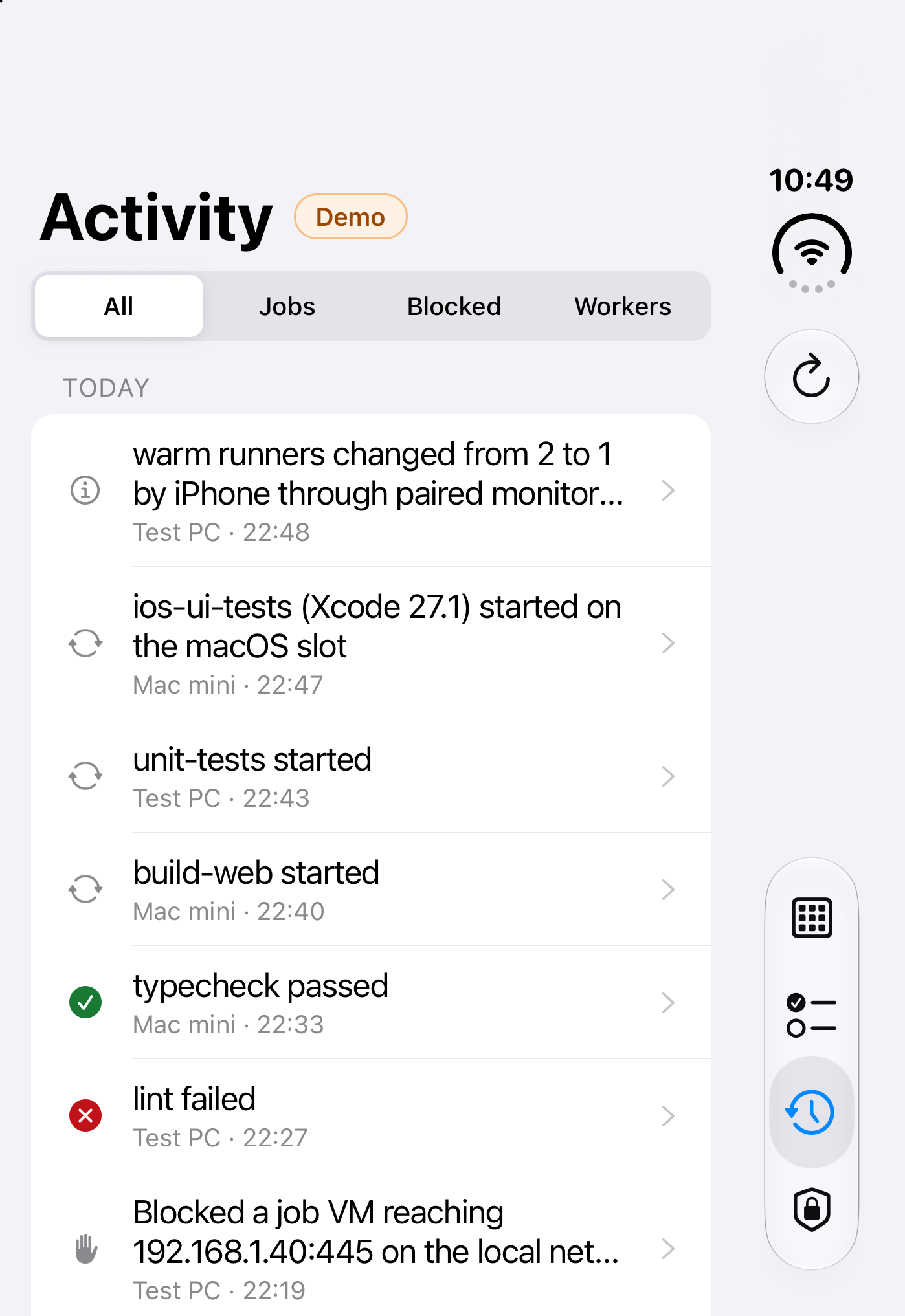
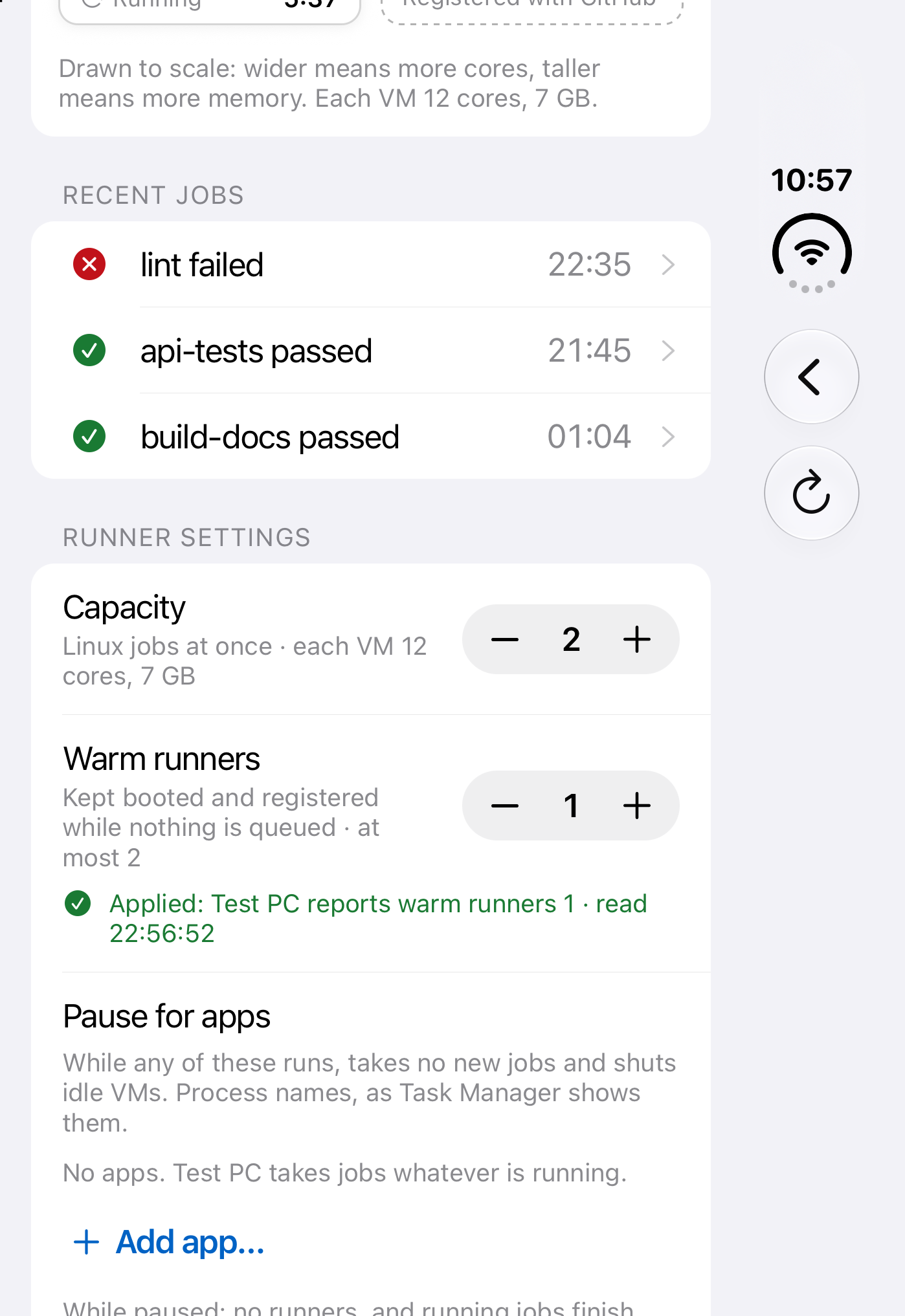
Your iPhone shows the fleet watched by your monitor Mac. Check whether each worker is reachable, what its runners are doing right now, and what changed recently across your machines.
- Every worker, its runners, and the jobs running on them.
- Whether your Mac reaches each worker and when it last heard.
- Recent activity: jobs started and finished, settings changed, workers paused.
- Job details: workflow, repository, run, elapsed time, and runner.
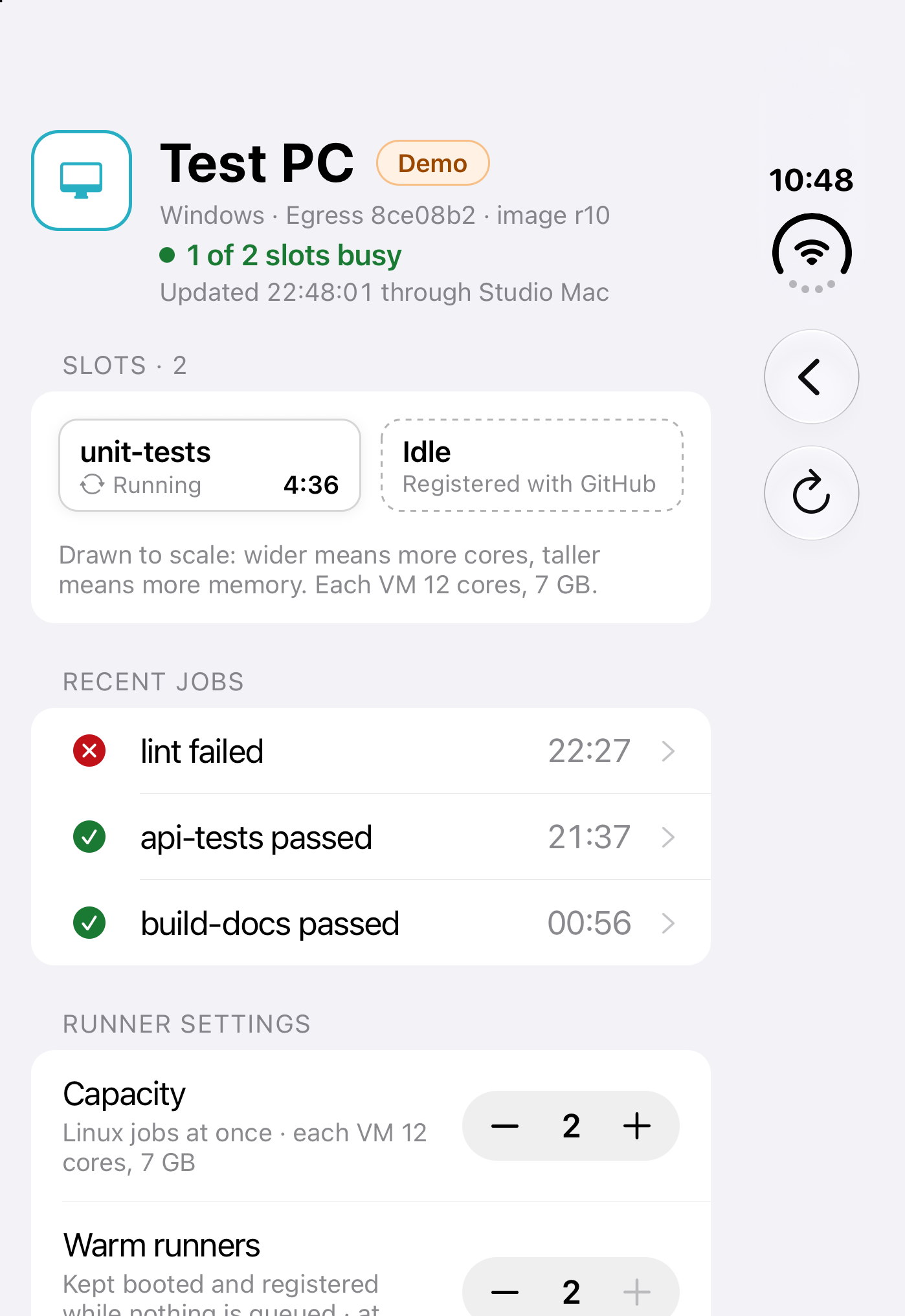
Five worker settings, if the owner allows
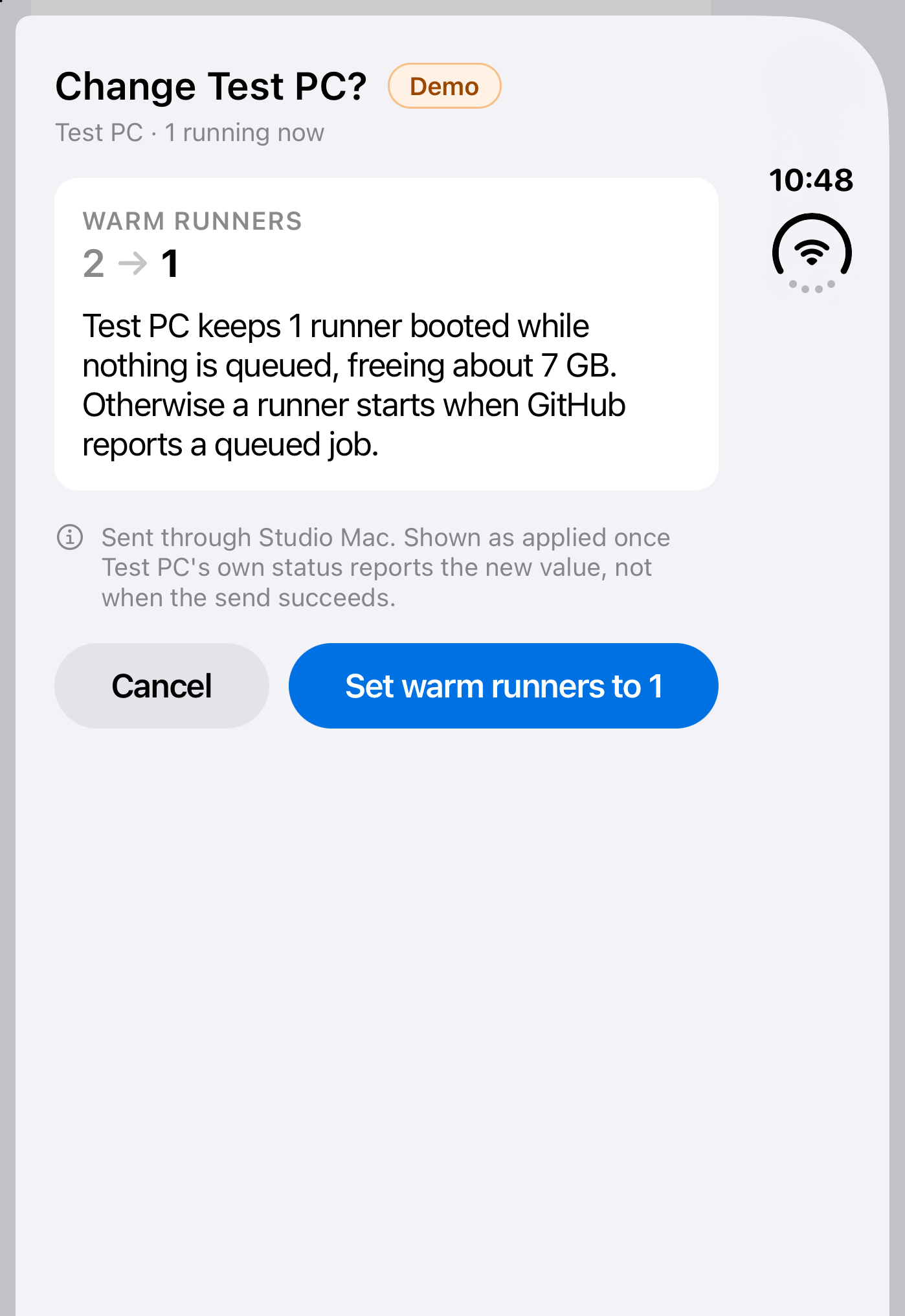
If paired with permission to change settings, each edit is reviewed on a confirmation sheet before sending. Egress marks a change as applied only when the worker's own status reports the new value, not when the send succeeds.
- How many jobs a worker runs at once.
- How many macOS jobs a worker runs at once.
- How many runners a worker keeps warm.
- The list of open apps that pause jobs.
- Draining the worker before a restart.
It can never cancel or stop jobs, read or copy a GitHub token, pair or remove machines, or change a machine's role, address or repository.
Pair with your Mac in three steps
Get the six-digit code
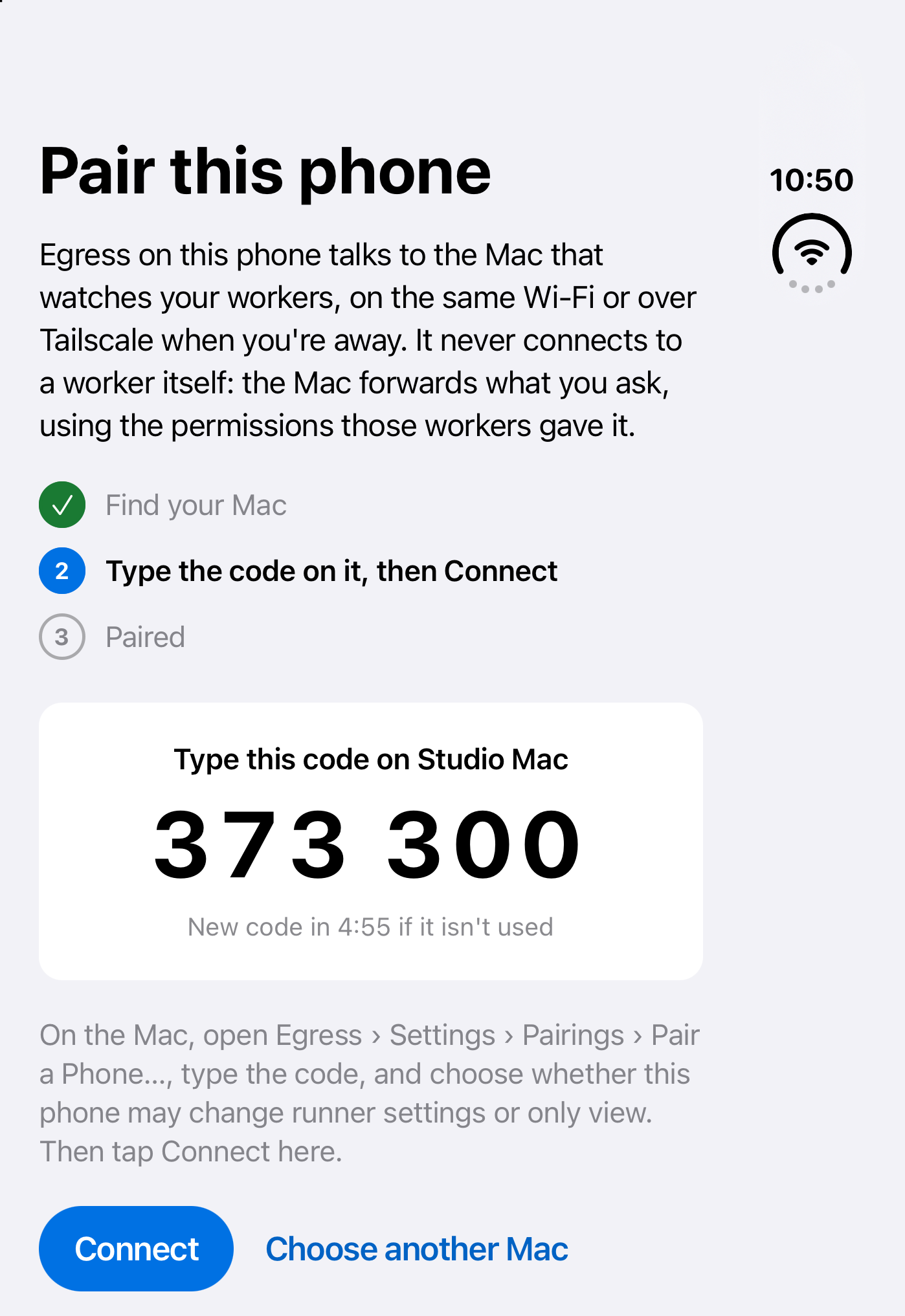
Open Egress on your iPhone to show a six-digit pairing code.
Enter it on your Mac
On your monitor Mac, open Egress › Settings › Pairings › Pair a Phone… and type the code.
Pick a permission level
Choose View only or Can change worker settings. You can remove the phone from your Mac at any time.
Direct to your Mac, nothing in between
Your iPhone talks only to its paired Mac, never to a worker and never through a Fledgeling server. Your Mac forwards requests using permissions its workers already gave it, so your phone can do no more than your Mac. The app has no analytics, crash-reporting or advertising SDKs, and no telemetry.
- Finds your Mac automatically on Wi-Fi, or connects via Tailscale by tailnet name.
- Encrypted end to end with the Noise protocol, matching Egress's machines.
- Pairing key stays in this iPhone's Keychain only, never synced to iCloud.
Side by side on iPhone Duo
Open an iPhone Duo to view the list and your selected worker or job side by side; close it for one column. It works on every other iPhone too.
What you need
- An Apple silicon Mac (macOS 14 or later) acting as the Egress monitor.
- The notarised Egress Mac release that adds phone pairing.
- Same Wi-Fi or Tailscale. A Windows PC cannot be the phone's monitor yet.
Questions
What do I need to use the app?
You need an Apple silicon Mac on macOS 14 or later acting as your Egress monitor, on the release that adds phone pairing. Download the notarised Mac app from egress.fledgeling.app. Windows PCs can run jobs as workers, but cannot act as the phone's monitor yet.
What changes between View only and Can change worker settings?
View only lets you inspect workers, runners, jobs and activity, with no setting edits allowed. Can change worker settings lets you adjust the five supported worker settings after reviewing a confirmation sheet. The Mac owner picks the permission during pairing.
Why does a change wait before showing Applied?
Egress does not mark a change as applied just because sending to your Mac succeeded. It waits until the worker's own status reports the new value back through your monitor Mac.
How do I use it away from home?
Connect over Tailscale using your monitor Mac's tailnet name. Traffic stays encrypted end to end with the Noise protocol directly between your iPhone and your Mac, with no Fledgeling server in between.
What can the phone never do?
It can never cancel or stop jobs, read or copy a GitHub token, pair or remove machines, or change a machine's role, address or repository. It talks only to your paired Mac and can do no more on a worker than your Mac can.
How do I remove a paired phone?
On your monitor Mac, open Egress › Settings › Pairings and remove the phone. You can remove a paired phone at any time.